More Flexible Approach to Listing Sale Products in Magento

Some clients have a need to show product on sale on homepage, or, sometimes, to filter products on sale in each category individually. In this post i’ll show you two ways of listing products on sale:
- On CMS page as a list
- By using a filter in category view
Let’s get to it!
Static CMS page
This is just a quick way of showing products on sale on one page, using admin and uploading one phtml file. Going down this path, you won’t be able to use pagination nor layered navigation. In case you would like those features, I’d recommend following the second part (Filter in Category) of this post.
Create a new CMS page with content set to
{{block type="catalog/product_list" template="inchoo/onsale/sale.phtml"}}and a template for listing your products.
app/design/frontend/default/YOUR_THEME/template/inchoo/onsale/sale.phtml
<?php
$_productCollection = Mage::getModel('catalog/product')->getCollection();
$_productCollection->addAttributeToSelect(array(
'image',
'name',
'short_description'
))
->addFieldToFilter('visibility', array(
Mage_Catalog_Model_Product_Visibility::VISIBILITY_BOTH,
Mage_Catalog_Model_Product_Visibility::VISIBILITY_IN_CATALOG
)) //showing just products visible in catalog or both search and catalog
->addFinalPrice()
// ->addAttributeToSort('price', 'asc') //in case we would like to sort products by price
->getSelect()
->where('price_index.final_price < price_index.price')
// ->limit(30) //we can specify how many products we want to show on this page
// ->order(new Zend_Db_Expr('RAND()')) //in case we would like to sort products randomly
;

Mage::getModel('review/review')->appendSummary($_productCollection);

$_helper = $this->helper('catalog/output');
?>
//
<?php if(!$_productCollection->count()): ?>
<p class="note-msg"><?php echo $this->__('There are no products matching the selection.') ?></p>
<?php else: ?>
<div class="category-products">
<?php // List mode ?>
<?php $_iterator = 0; ?>
<ol class="products-list" id="products-list">
<?php foreach ($_productCollection as $_product): ?>
<li class="item<?php if( ++$_iterator == sizeof($_productCollection) ): ?> last<?php endif; ?>">
<?php // Product Image ?>
<a href="<?php echo $_product->getProductUrl() ?>" title="<?php echo $this->stripTags($this->getImageLabel($_product, 'small_image'), null, true) ?>" class="product-image"><img src="<?php echo $_product->getImageUrl(); ?>" width="135" height="135" alt="<?php echo $this->stripTags($this->getImageLabel($_product, 'small_image'), null, true) ?>" /></a>
<?php // Product description ?>
<div class="product-shop">
<div class="f-fix">
<?php $_productNameStripped = $this->stripTags($_product->getName(), null, true); ?>
<h2 class="product-name"><a href="<?php echo $_product->getProductUrl() ?>" title="<?php echo $_productNameStripped; ?>"><?php echo $_helper->productAttribute($_product, $_product->getName() , 'name'); ?></a></h2>
<?php if($_product->getRatingSummary()): ?>
<?php echo $this->getReviewsSummaryHtml($_product) ?>
<?php endif; ?>
<?php echo $this->getPriceHtml($_product, true) ?>
<?php if($_product->isSaleable()): ?>
<p><button type="button" title="<?php echo $this->__('Add to Cart') ?>" class="button btn-cart" onclick="setLocation('<?php echo $this->getAddToCartUrl($_product) ?>')"><span><span><?php echo $this->__('Add to Cart') ?></span></span></button></p>
<?php else: ?>
<p class="availability out-of-stock"><span><?php echo $this->__('Out of stock') ?></span></p>
<?php endif; ?>
<div class="desc std">
<?php echo $_helper->productAttribute($_product, $_product->getShortDescription(), 'short_description') ?>
<a href="<?php echo $_product->getProductUrl() ?>" title="<?php echo $_productNameStripped ?>" class="link-learn"><?php echo $this->__('Learn More') ?></a>
</div>
<ul class="add-to-links" style="margin:0; padding-left:0; list-style: none;">
<?php if ($this->helper('wishlist')->isAllow()) : ?>
<li><a href="<?php echo $this->helper('wishlist')->getAddUrl($_product) ?>" class="link-wishlist"><?php echo $this->__('Add to Wishlist') ?></a></li>
<?php endif; ?>
<?php if($_compareUrl=$this->getAddToCompareUrl($_product)): ?>
<li><span class="separator">|</span> <a href="<?php echo $_compareUrl ?>" class="link-compare"><?php echo $this->__('Add to Compare') ?></a></li>
<?php endif; ?>
</ul>
</div>
</div>
</li>
<?php endforeach; ?>
</ol>
<script type="text/javascript">decorateList('products-list', 'none-recursive')</script>
</div>
<?php endif; ?>
That’s it! Try and visit your CMS page. You’ll see that the products with special price are listed in a ‘list view’, something like this:
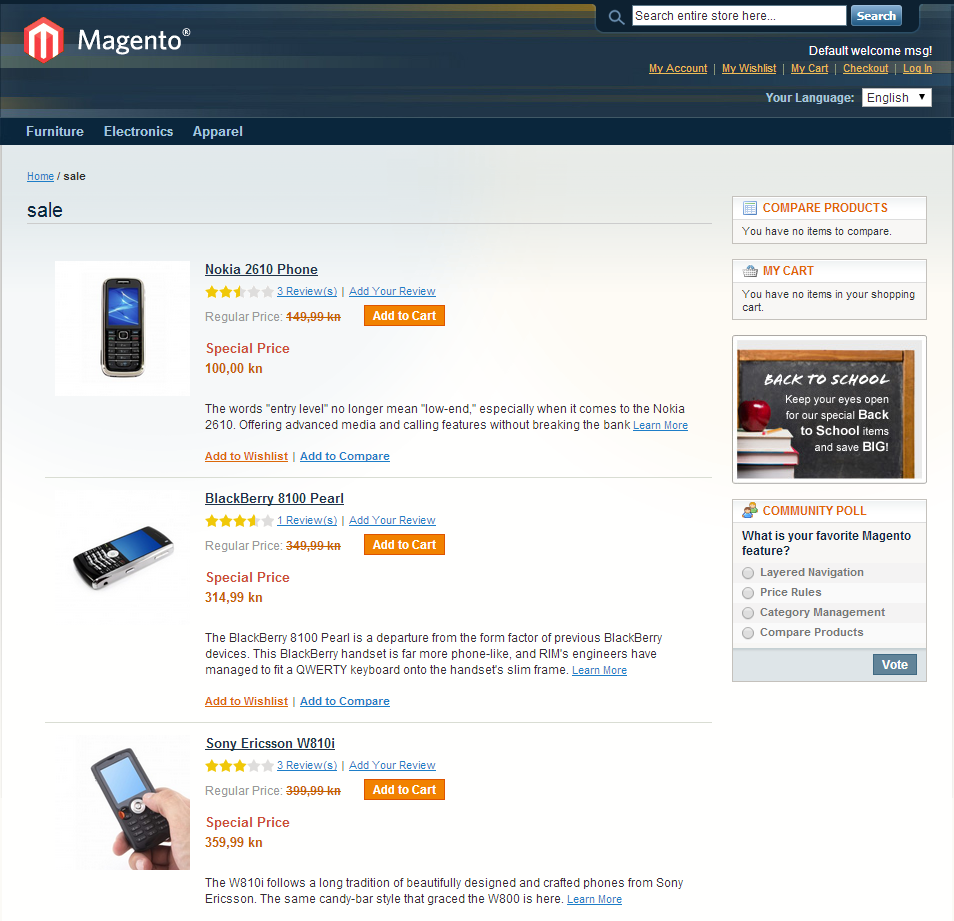
With small modifications, you could display products in ‘grid view’ as well.
Filter in Category View
Magento applies filtering and loads collection to layered navigation before that same collection gets loaded in the template. That’s why we need to overwrite _getProductCollection method, so that we can apply custom filtering before the collection gets loaded. Let’s do that by extending Mage_Catalog_Product_List class and rendering our block instead of the default one on category view.
Let’s register out little module. For our purposes, let’s name it ‘Inchoo/Onsale’.
app/etc/modules/Inchoo_Onsale.xml
<?xml version="1.0"?>
<config>
<modules>
<Inchoo_Onsale>
<active>true</active>
<codePool>local</codePool>
</Inchoo_Onsale>
</modules>
</config>
Let’s also configure our module. We’ll use a block, helper, and modify the layout of our template a little bit.
app/code/local/Inchoo/Onsale/etc/config.xml
<?xml version="1.0"?>
<config>
<modules>
<Inchoo_Onsale>
<version>1.0.0.3</version>
</Inchoo_Onsale>
</modules>
<global>
<blocks>
<inchoo_onsale>
<class>Inchoo_Onsale_Block</class>
</inchoo_onsale>
</blocks>
<helpers>
<inchoo_onsale>
<class>Inchoo_Onsale_Helper</class>
</inchoo_onsale>
</helpers>
</global>
<frontend>
<layout>
<updates>
<onsale>
<file>inchoo/onsale.xml</file>
</onsale>
</updates>
</layout>
</frontend>
</config>
Now, register a helper that will have two methods: getOnSaleUrl and getNotOnSaleUrl. They’ll be used by our checkbox, to fetch URL that will be loaded upon click. We’ll also add a new variable to URL – ‘sale‘. When sale equals 1, we’ll show products on sale, if it is not set, we’ll show all products in category.
app/code/local/Inchoo/Onsale/Helper/Data.php
<?php
class Inchoo_Onsale_Helper_Data extends Mage_Core_Helper_Abstract
{
public function getOnSaleUrl()
{
$url = Mage::getUrl('', array(
'_current' => true,
'_use_rewrite' => true,
'_query' => array(
'sale' => 1,
'p' => NULL
)
));

return $url;
}

public function getNotOnSaleUrl()
{
$url = Mage::getUrl('', array(
'_current' => true,
'_use_rewrite' => true,
'_query' => array(
'sale' => NULL,
'p' => NULL
)
));

return $url;
}
}
Now, lets create our block. We’ll extend our class from Mage_Catalog_Block_Product_List, and write our own _getProductCollection method.
app/code/local/Inchoo/Onsale/Block/Catalog/Product/List.php
<?php
class Inchoo_Onsale_Block_Catalog_Product_List extends Mage_Catalog_Block_Product_List
{
protected function _getProductCollection()
{
if (is_null($this->_productCollection)) {
$layer = $this->getLayer();
/* @var $layer Mage_Catalog_Model_Layer */
if ($this->getShowRootCategory()) {
$this->setCategoryId(Mage::app()->getStore()->getRootCategoryId());
}

// if this is a product view page
if (Mage::registry('product')) {
// get collection of categories this product is associated with
$categories = Mage::registry('product')->getCategoryCollection()
->setPage(1, 1)
->load();
// if the product is associated with any category
if ($categories->count()) {
// show products from this category
$this->setCategoryId(current($categories->getIterator()));
}
}

$origCategory = null;
if ($this->getCategoryId()) {
$category = Mage::getModel('catalog/category')->load($this->getCategoryId());
if ($category->getId()) {
$origCategory = $layer->getCurrentCategory();
$layer->setCurrentCategory($category);
$this->addModelTags($category);
}
}
$this->_productCollection = $layer->getProductCollection();

// inchoo start
$param = Mage::app()->getRequest()->getParam('sale');
if(isset($param) && $param==='1'){
$this->_productCollection
->addFinalPrice()
->getSelect()
->where('price_index.final_price < price_index.price');
}
// inchoo end

$this->prepareSortableFieldsByCategory($layer->getCurrentCategory());

if ($origCategory) {
$layer->setCurrentCategory($origCategory);
}
}

return $this->_productCollection;
// return parent::_getProductCollection();
}
}
We’ll also add a checkbox to our toolbar, where our customer will be able to filter products that are on sale. Open your toolbar.phtml file.
app/design/frontend/default/YOUR_THEME/template/inchoo/onsale/toolbar.phtml
<!--inchoo start-->
<?php $helper = Mage::helper('inchoo_onsale'); ?>
<!--inchoo end-->
<?php if($this->getCollection()->getSize()): ?>
<div class="toolbar">
<div class="pager">
<p class="amount">
<?php if($this->getLastPageNum()>1): ?>
<?php echo $this->__('Items %s to %s of %s total', $this->getFirstNum(), $this->getLastNum(), $this->getTotalNum()) ?>
<?php else: ?>
<strong><?php echo $this->__('%s Item(s)', $this->getTotalNum()) ?></strong>
<?php endif; ?>
</p>
<div class="limiter">
<label><?php echo $this->__('Show') ?></label>
<select onchange="setLocation(this.value)">
<?php foreach ($this->getAvailableLimit() as $_key=>$_limit): ?>
<option value="<?php echo $this->getLimitUrl($_key) ?>"<?php if($this->isLimitCurrent($_key)): ?> selected="selected"<?php endif ?>>
<?php echo $_limit ?>
</option>
<?php endforeach; ?>
</select> <?php echo $this->__('per page') ?>
</div>
<?php echo $this->getPagerHtml() ?>
</div>
<?php if( $this->isExpanded() ): ?>
<div class="sorter">
<?php if( $this->isEnabledViewSwitcher() ): ?>
<p class="view-mode">
<?php $_modes = $this->getModes(); ?>
<?php if($_modes && count($_modes)>1): ?>
<label><?php echo $this->__('View as') ?>:</label>
<?php foreach ($this->getModes() as $_code=>$_label): ?>
<?php if($this->isModeActive($_code)): ?>
<strong title="<?php echo $_label ?>" class="<?php echo strtolower($_code); ?>"><?php echo $_label ?></strong>
<?php else: ?>
<a href="<?php echo $this->getModeUrl($_code) ?>" title="<?php echo $_label ?>" class="<?php echo strtolower($_code); ?>"><?php echo $_label ?></a>
<?php endif; ?>
<?php endforeach; ?>
<?php endif; ?>
</p>
<?php endif; ?>
<div class="sort-by">
<label><?php echo $this->__('Sort By') ?></label>
<select onchange="setLocation(this.value)">
<?php foreach($this->getAvailableOrders() as $_key=>$_order): ?>
<option value="<?php echo $this->getOrderUrl($_key, 'asc') ?>"<?php if($this->isOrderCurrent($_key)): ?> selected="selected"<?php endif; ?>>
<?php echo $this->__($_order) ?>
</option>
<?php endforeach; ?>
</select>
<?php if($this->getCurrentDirection() == 'desc'): ?>
<a href="<?php echo $this->getOrderUrl(null, 'asc') ?>" title="<?php echo $this->__('Set Ascending Direction') ?>"><img src="<?php echo $this->getSkinUrl('images/i_desc_arrow.gif') ?>" alt="<?php echo $this->__('Set Ascending Direction') ?>" class="v-middle" /></a>
<?php else: ?>
<a href="<?php echo $this->getOrderUrl(null, 'desc') ?>" title="<?php echo $this->__('Set Descending Direction') ?>"><img src="<?php echo $this->getSkinUrl('images/i_asc_arrow.gif') ?>" alt="<?php echo $this->__('Set Descending Direction') ?>" class="v-middle" /></a>
<!--inchoo start-->
<label for="sale"><?php echo $this->__('On Sale') ?></label>
<input name="sale" id="sale" type="checkbox"
value="<?php
$currentUrl = Mage::helper('core/url')->getCurrentUrl();
if($currentUrl===$helper->getOnSaleUrl()):
echo $helper->getNotOnSaleUrl();
echo "\"checked=\"checked";
else:
echo $helper->getOnSaleUrl();
endif;
?>" autocomplete="off" onchange="setLocation(this.value)"/>
<!--inchoo end-->
<?php endif; ?>
</div>
</div>
<?php endif; ?>
</div>
<?php endif ?>And, lastly, create our layout file to make Magento use our toolbar.phtml template instead of the default one.
app/design/frontend/default/YOUR_THEME/layout/inchoo/onsale.xml
<?xml version="1.0"?>

<layout version="0.1.0">
<catalog_category_default>
<reference name="category.products">
<block type="inchoo_onsale/catalog_product_list" name="product_list" template="catalog/product/list.phtml">
<block type="catalog/product_list_toolbar" name="product_list_toolbar" template="inchoo/onsale/toolbar.phtml">
<block type="page/html_pager" name="product_list_toolbar_pager"/>

<!-- The following code shows how to set your own pager increments -->
<!--
<action method="setDefaultListPerPage"><limit>4</limit></action>
<action method="setDefaultGridPerPage"><limit>9</limit></action>
<action method="addPagerLimit"><mode>list</mode><limit>2</limit></action>
<action method="addPagerLimit"><mode>list</mode><limit>4</limit></action>
<action method="addPagerLimit"><mode>list</mode><limit>6</limit></action>
<action method="addPagerLimit"><mode>list</mode><limit>8</limit></action>
<action method="addPagerLimit" translate="label"><mode>list</mode><limit>all</limit><label>All</label></action>
-->
</block>
<action method="addColumnCountLayoutDepend"><layout>empty</layout><count>6</count></action>
<action method="addColumnCountLayoutDepend"><layout>one_column</layout><count>5</count></action>
<action method="addColumnCountLayoutDepend"><layout>two_columns_left</layout><count>4</count></action>
<action method="addColumnCountLayoutDepend"><layout>two_columns_right</layout><count>4</count></action>
<action method="addColumnCountLayoutDepend"><layout>three_columns</layout><count>3</count></action>
<action method="setToolbarBlockName"><name>product_list_toolbar</name></action>
</block>
</reference>
</catalog_category_default>

<catalog_category_layered>
<reference name="category.products">
<block type="inchoo_onsale/catalog_product_list" name="product_list" template="catalog/product/list.phtml">
<block type="catalog/product_list_toolbar" name="product_list_toolbar" template="inchoo/onsale/toolbar.phtml">
<block type="page/html_pager" name="product_list_toolbar_pager"/>

<!-- The following code shows how to set your own pager increments -->
<!--
<action method="setDefaultListPerPage"><limit>4</limit></action>
<action method="setDefaultGridPerPage"><limit>9</limit></action>
<action method="addPagerLimit"><mode>list</mode><limit>2</limit></action>
<action method="addPagerLimit"><mode>list</mode><limit>4</limit></action>
<action method="addPagerLimit"><mode>list</mode><limit>6</limit></action>
<action method="addPagerLimit"><mode>list</mode><limit>8</limit></action>
<action method="addPagerLimit" translate="label"><mode>list</mode><limit>all</limit><label>All</label></action>
-->
</block>
<action method="addColumnCountLayoutDepend"><layout>empty</layout><count>6</count></action>
<action method="addColumnCountLayoutDepend"><layout>one_column</layout><count>5</count></action>
<action method="addColumnCountLayoutDepend"><layout>two_columns_left</layout><count>4</count></action>
<action method="addColumnCountLayoutDepend"><layout>two_columns_right</layout><count>4</count></action>
<action method="addColumnCountLayoutDepend"><layout>three_columns</layout><count>3</count></action>
<action method="setToolbarBlockName"><name>product_list_toolbar</name></action>
</block>
</reference>
</catalog_category_layered>
</layout>
See it in action:
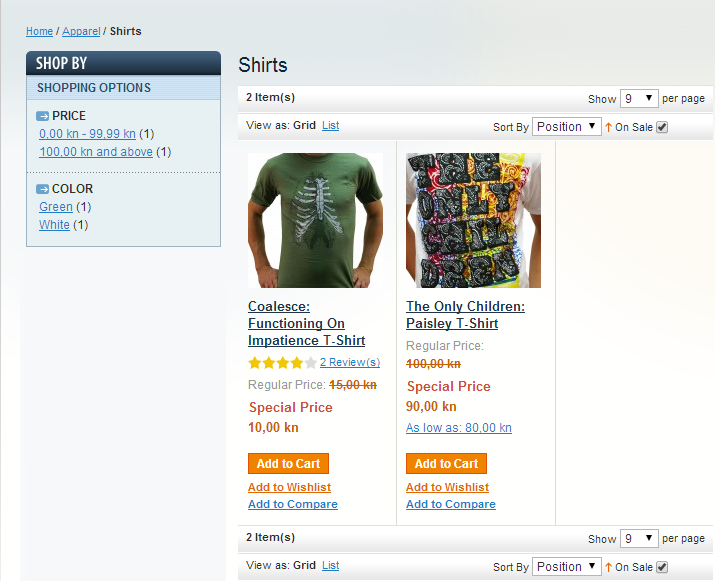
Note that layered navigation works, as well as pagination. Just what we wanted.
P.S. You can always view this module on GitHub or download zipped file and install it.





38 comments
I had issues with the image not displaying. I compared to the original Magento Product list file and noticed it needed all the attributes for the collection to see the image. If you are having same issue:
The first line in the sale.phtml file should instead be:
$_productCollection = Mage::getModel(‘catalog/product’)->getCollection()->addAttributeToSelect(‘*’);
how can make this but in Magento, i need override the _getProductCollection protected method that shown all new products…. thanks
By using {{block type=”catalog/product_list” template=”inchoo/onsale/sale.phtml”}}
sale product is not listing in new page.
In Magento any way to separate product which has spacial price and normal price in category list page.
I want to show normal price product first and after all normal product show special price product.
I am new in magento.I have installed the module but unable to access.Can you guide me the front url so i will access it in the browser.
Great solution, to the point. Thank you.
All works well, but my layered navigation product count is wrong, it doesn’t update the count once I select “Sale” from toolbar. Check it here: http://www.digitalcinemashop.com/testing-digitalcinema.com.au/projectors?sale=1
If you remove “sale=1” from url then you will see same product count in layered nav.
Please suggest, what could be the case?
Great article, but I have a challenge. Can you think of an elegant way to extend this so that non sale products are viewed in the normal way (e.g. at /shirts/) but we create a special way to view all sale products using a URL prefix. For example /sales/shirts/ ? In this way, /sales/ would contain all the normal Magento categories, but pre-filtered for only products that are on sale.
Hi, I need to create Note visible only to wholesale customers, showing on all FL & FLB Patch product pages under the “Special Price”, pages that says “ Must order 3 pieces per design/color to receive quantity discount. how can I do that ?
Quality, thanks for this post! Just noticed, your code for CMS Specials list page, has an extra “//” on line 24 which shows on the front end before the “There are no products matching the selection.” if no special offers are available.
Your post saved me loads of time! Thanks again!
Hi,
Great article. however I did everything written in this lovely article but, I am getting the sale products collection without the toolbar, pagination and layered navigation. I am using Magento 1.9.1 so how can I implement toolbar, pagination and layered navigation?
Thanks in advance.
Is there any solution to display by default list view in category page and grid view in cms page. Cms page will include the product from one specified category and the product to be displayed in list page must me 20 in one set and in grid view of cms page it must show 48 products in one set…
Hi, thanks for the great solution. One question though, for some reason both in list and grid view using CMS page solution, product prices are shown as regular price (regular-price container class is used). Product detail view and normal list view are showing the old and special price value.
For anyone that might be trying to hack through Magento WITHOUT use of CMS pages and custom blocks and .XML files, etc., I just wanted to point out that I was able to successfully implement the first example above directly in list.phtml, while keeping pagination intact …
First, i made a new category called ‘SALE’. Then, i used a conditional script to check if we are in that category. Next, I used the example code to customize the collection output when in the SALE category to show only products that have a “special_price” set. Lastly, I check on the URL parameters (i.e. page number) vs. the collection’s “last page” value (by use of
getLastPageNumber()) to manually update the custom collection’s “current page” viasetCurPage().Furthermore, though the collection filters above worked fine for me, I did have to customize them. Specifically, I changed the “visibility” filter to look for non-visible products. However, during my tiresome search for a fix for pagination, I changed the collection constantly by suggestions from other sources. In the end I have something different than the original example, but that does the same thing. The only difference being that the one in my code didnt require any change to search for visible vs. non-visible products.
But the point is that the original example collection works just fine and can be used with proper navigation. The only important part here is the conditional check for the “current page” parameter in the URL vs. the “total pages” of the collection.
…. Here’s my final code:
This code works perfectly when “Use Flat Catalog Product” is not selected. How do i alter the code so it does work with “Use Flat Catalog Product” selected?
I have implemented the same in my site. But it is affecting the ajax layer navigation & ajax toolbar. May i know how to fix it?
how can i add this in search result page toolbar??
hiii Petar Sambolek,
i want show discounted product top of the category rest will be on bottom. i tried but it show mixed. i’m working on localhost.
plzz help
Did u got the solution for Discounted product.. If so could you please share with me..
This is my first project and so need your help. pls reply as soon as possible.. I’m awaiting
Thanks in Advance.
How can I implement the second solution without the toolbar? I want a catalog view with only products with special price AND layered navigation on the side.
we added https://github.com/Marko-M/Inchoo_Sale module but in that case layer navigation not display and also in template layer folder is missing.
Our requirement is display sales product listing with layer navigation.
we don’t need to sale and on sale attribute.layer navigation work with default category.
We need sale product listing display same as
http://www.manadev.com/demo/shop-by-special-price/index.php/sale/
http://www.manadev.com/shop-by-special-price
Update: the problem seems to be CSS related. For some reason the items are very wide and thus only one product per row is displayed (which really sucks).
Awesome job man. Definitely pointed me in the right direction. I checked out your code and it is working fine. Although one thing boggles me: I tried your Grid (instead of List) view snippet and it doesn’t work. The products look like grid view, but there is only one column. I tried setting an absolute value for columnCount in the phtml and tried every page-layout for the CMS page, but to no avail.
Did I miss something? Should the CMS include line on the page be different, as well?
Hi Petar,
really nice work here. Can you show me how to get only the x newest products on sale?
Thanks a lot!
Found it 🙂
To sum up, i needed to create a special category which list automatically all products in sales for the whole catalog.
Sometimes, i’d like to not display some specific products on it.
First, i created a category “Sales” which contains all the product’s i’d like to display.
Then, creation of a custom module like in the article.
Changes are:
This update let us automatically list all the product’s in sales without a checkbox in a toolbar.
At this point, pagination and list works well, but not filters on the navigation left.
Here’s the trick:
Creation of a customer model layer:
Now, our custom layer needs to be called, we need to create a special layer view block (like list one)
To finish, i the back office, we need to update custom layout for that category (customer design / custom update layout)
Worked well for me, thank you again Petar for your post.
Hello Petar,
Thank you for your answer, but i guess you misunderstood my issue.
I need to display all product’s in sale for the whole catalog (and not for a specific category).
In my case, i did not need your toolbar.
I created a specific category which contains all products for my catalog and used update layout in back office in order to override getColletion method by using mine.
Display works well, i have only products in sales, and so is pagination, but results of filters display all products for the category (as if they were no sales).
By the way, i’ll dig from my side if you have no clue and put the answer here.
Thank you again!
Hi, Otokim.
I’m glad you found a use for this code 🙂
I have tried what you did and I get only products on sale in category. I did everything as written in the article, removed the code for ‘onsale‘ parameter in List.php, and modified layout to use default toolbar template. Try doing everything again, and instead of onsale.xml written in the article, use this code:
@?? ch?i tr? em
Yes, it does works
@Petar:
Thank you for your post, very usefull. I just have one issue. I need to automatically list all product in sales for the whole catalog.
I created a sales category which contains all products. It works well, but layer navigation display all results from my category (and not only product’s in sale).
In my class, i changed a bit your method:
In admin, i tried those two approaches:
And
Of course, i did not need your toolbar since i want to automatically list sale’s item.
Would you help me finding out whats going one?
Thank you!
Very nice job
Hello Petar,
Does the CMS method also list product on sale by setting Catalog Price Rules ?
Thank you very much.
Hi,
This is great info!
However I was wondering how could I include pagination and layered navigation into the CMS catalog sale list…
Summing up I want a regular normal product list (grid and list) with only sale products 🙂
Thanks
Thanks Petar, I really appreciate your responses and I have a question regarding my online store at hompathcure.com where I would like to create a cms page to how just product name, short description and add to cart button all three options in one row so I can show my customers to purchase directly from that page whatever they are interested to purchase, I will really appreciate your response via email thanks
Hi, Hans.
I’m glad to hear this article helped you 🙂
As for your question, the simplest solution would be to comment out all code in the toolbar.phtml or add a conditional in toolbar.phtml file.
However, this would remove toolbar from other category pages as well.
If you need to do this for only one CMS page (without pagination), the most appropriate method would be following the second part of this article (Filter in Category View), but without doing layout updates (onsale.xml). Then, create a CMS page with the content set to
and commenting out lines 36 and 41 in List.php
But, this is just an idea. Hope this helped you 🙂
thank you for the great blog! Especially the second solution is great. I used to have sales items on a CMS Page but was missing the Layered Navigation.
How can I implement the second solution without the toolbar? I want a catalog view with only products with special price AND layered navigation on the side.
Oh Man! I just had to solve exactly the same problem earlier this week. Unfortunately I hadn’t found this post til today after I’d finished.
I was completely unaware of the addFinalPrice() collection method and of the price_index table alias used in the where clause. I solved it by creating an is_on_sale product attribute and then running a nightly ‘indexer’ to populate the attribute for all products. Same effect, but it would have been great to know Magento had the features I needed right there the whole time.
Thanks for the research.
Hi this is really nice work
but i have a query . i show only 4 product on home page. and after that i want to add a link find out more . but i am unable to give this links how can i show all products using this link
Hi, Jay.
Which approach of these two have you used?
Have you cleared your cache when you changed layout xml configuration (onsale.xml)?
I tried implementing your code and couldn’t get it to work with my custom theme. I have since removed the code, however, now I am still left with the option to filter by “On Sale”. Double checked that all files have been removed. Any tips on how I can remove this so that the option is longer available?
Hi, hotmonitor!
Thanks for the comment 🙂
For listing products in grid mode on a CMS page, place the following code in your app/design/frontend/default/YOUR_THEME/template/inchoo/onsale/sale.phtml
instead of the one written above.
Hello
List mode in CMS works
How to put Grid mode in CMS?